
How to Pay with ClassWallet at Laurelwood Books
State Funding
State funding for homeschoolers varies across the country. Some states offer education savings accounts or scholarship programs that families can use toward curriculum and learning materials. Laurelwood Books is an approved ClassWallet vendor in Arizona, Alabama, and Arkansas, making it easy for families to use their funds with us.
How to Use Your ClassWallet Funds
Step 1. Shop as normal. When you're done, click the cart icon in the site header to view your cart.
Note: For families with multiple students, you will need to make a separate transaction for each child.
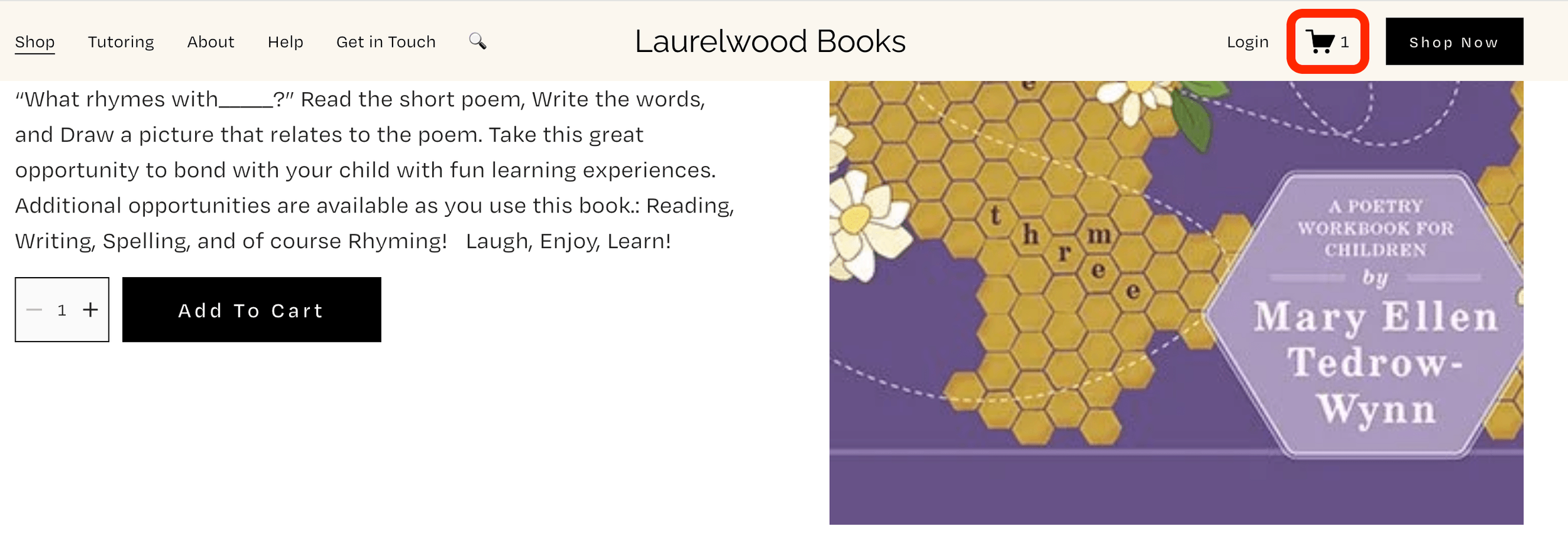
Step 2. When you are finished shopping, click the Checkout button.
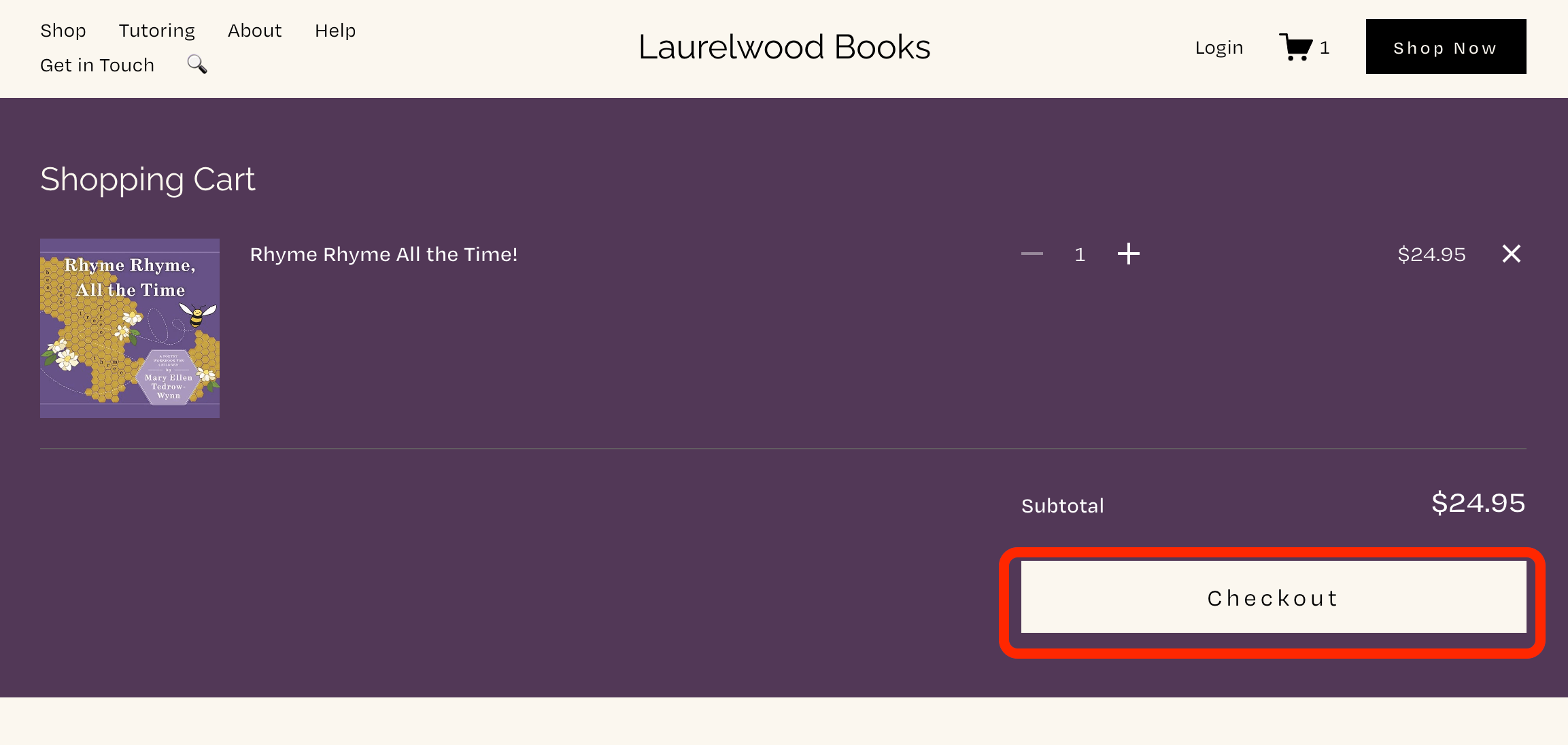
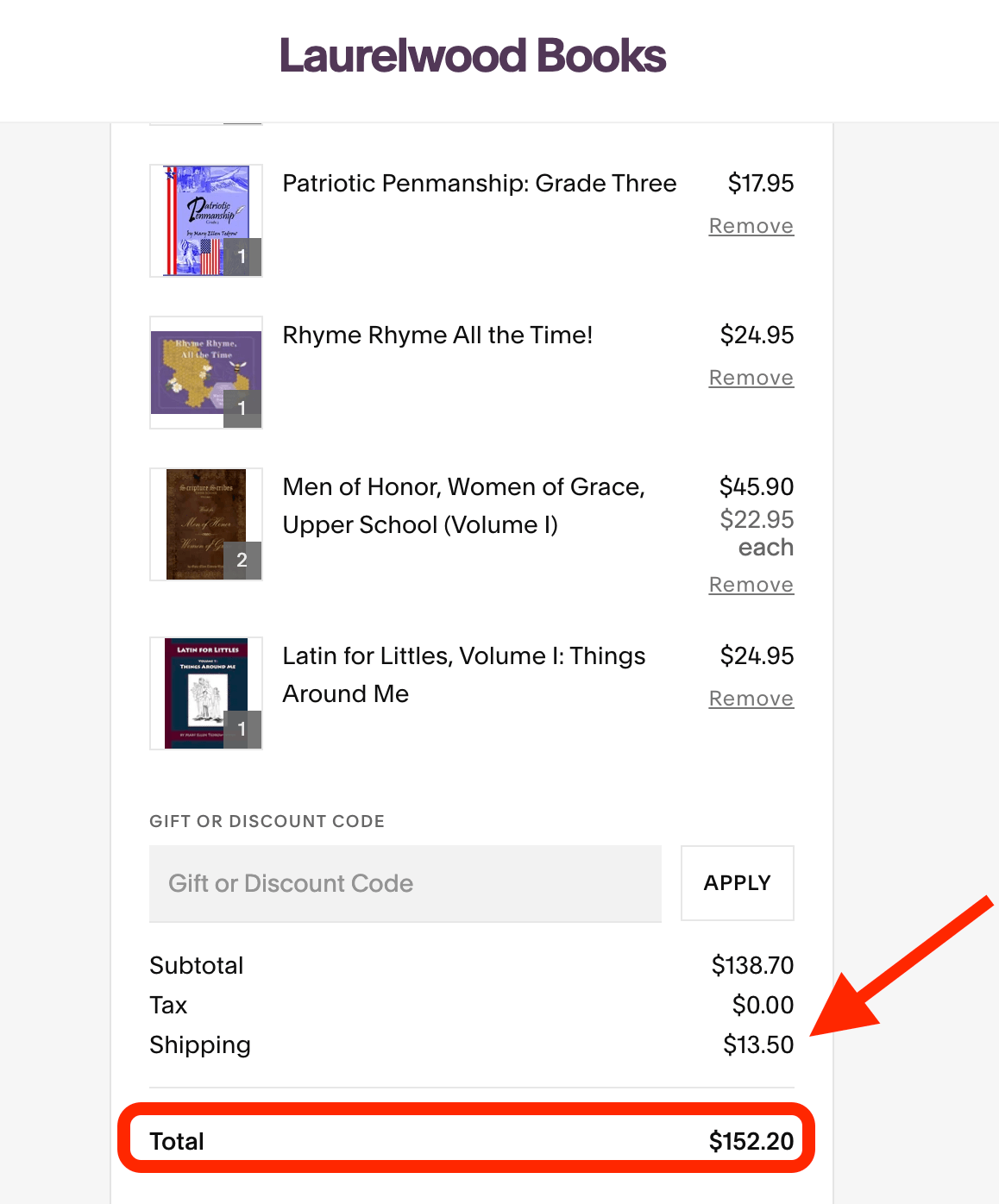
Step 3. You should see a full list of the items in your cart, along with prices, shipping costs, and the final total.
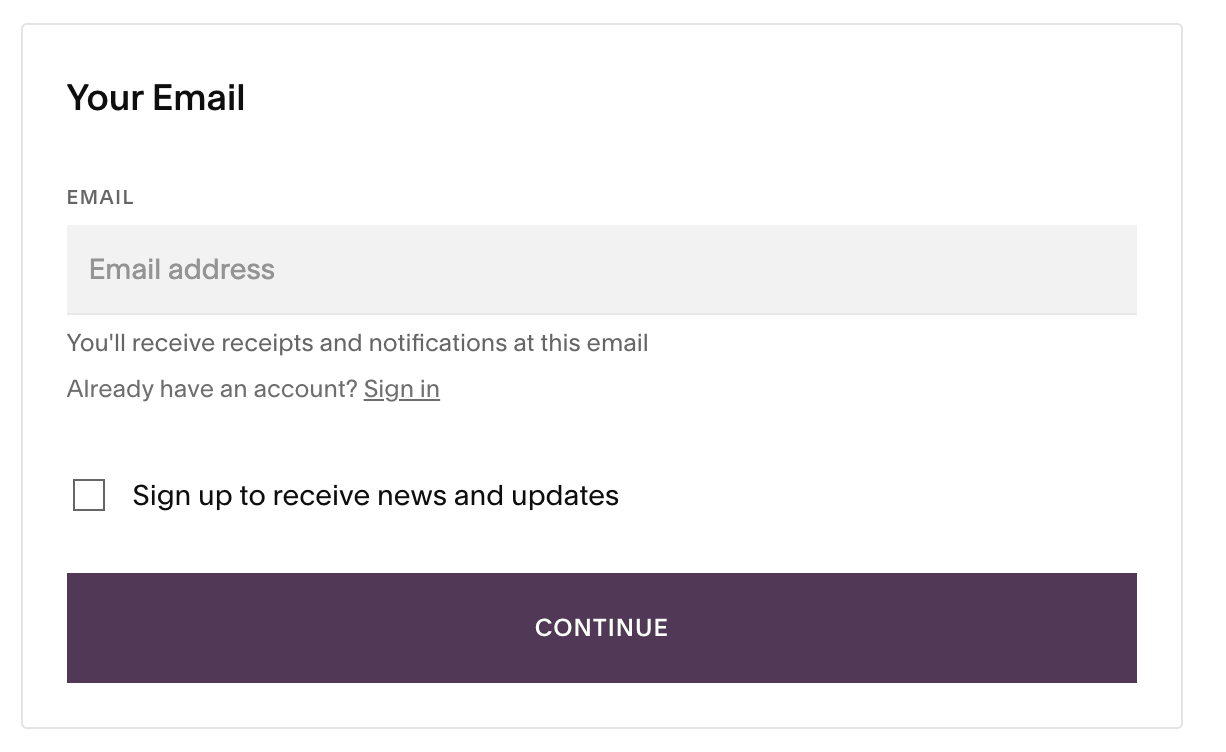
Step 4. Put in the email address associated with your ClassWallet account and then click Continue.
Step 5. Fill in the Delivery information with the parent’s name and shipping address. Click Continue.
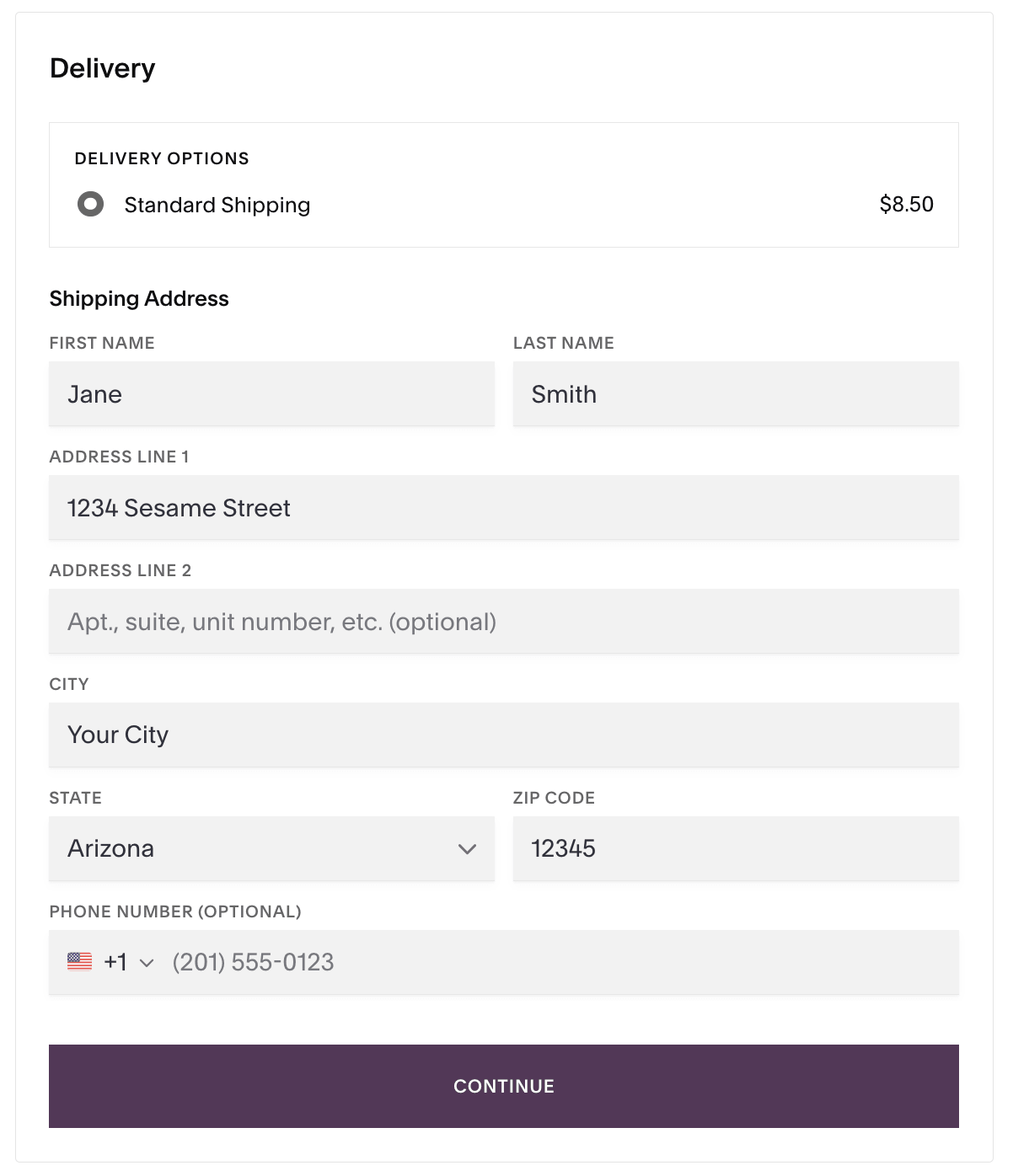
Check your information
Be sure to use the email, parent name, and shipping address associated with your state’s ESA/ClassWallet account.
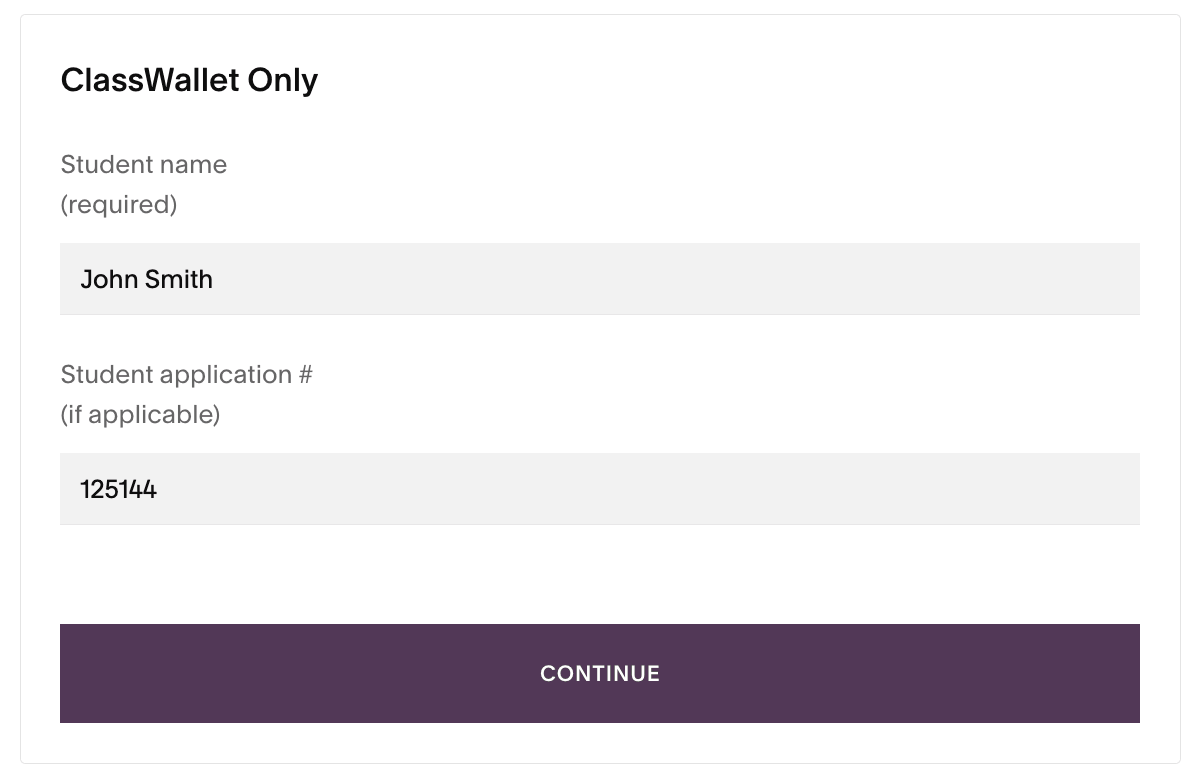
Step 6. Under ClassWallet Only, add your student’s name (required) and student’s application number (if applicable for your state’s ESA requirements). Then click Continue and verify that your student’s information is correct.
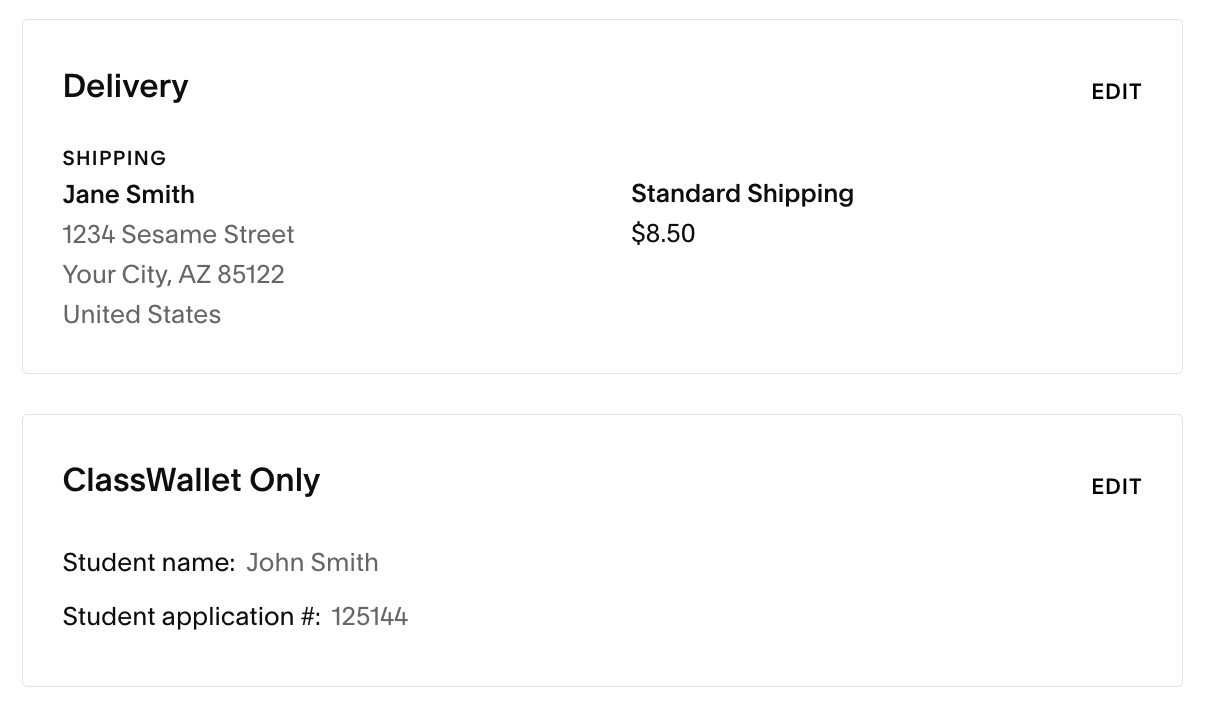
Step 7. At the Payment stage, STOP. Do not add your personal payment information and do not submit your order. Instead, press Ctrl+P (Windows) or Cmd+P (Mac) to open the print options.
(In some browsers, like Chrome and Edge, you can also right-click anywhere on the page and select Print… from the menu options.)
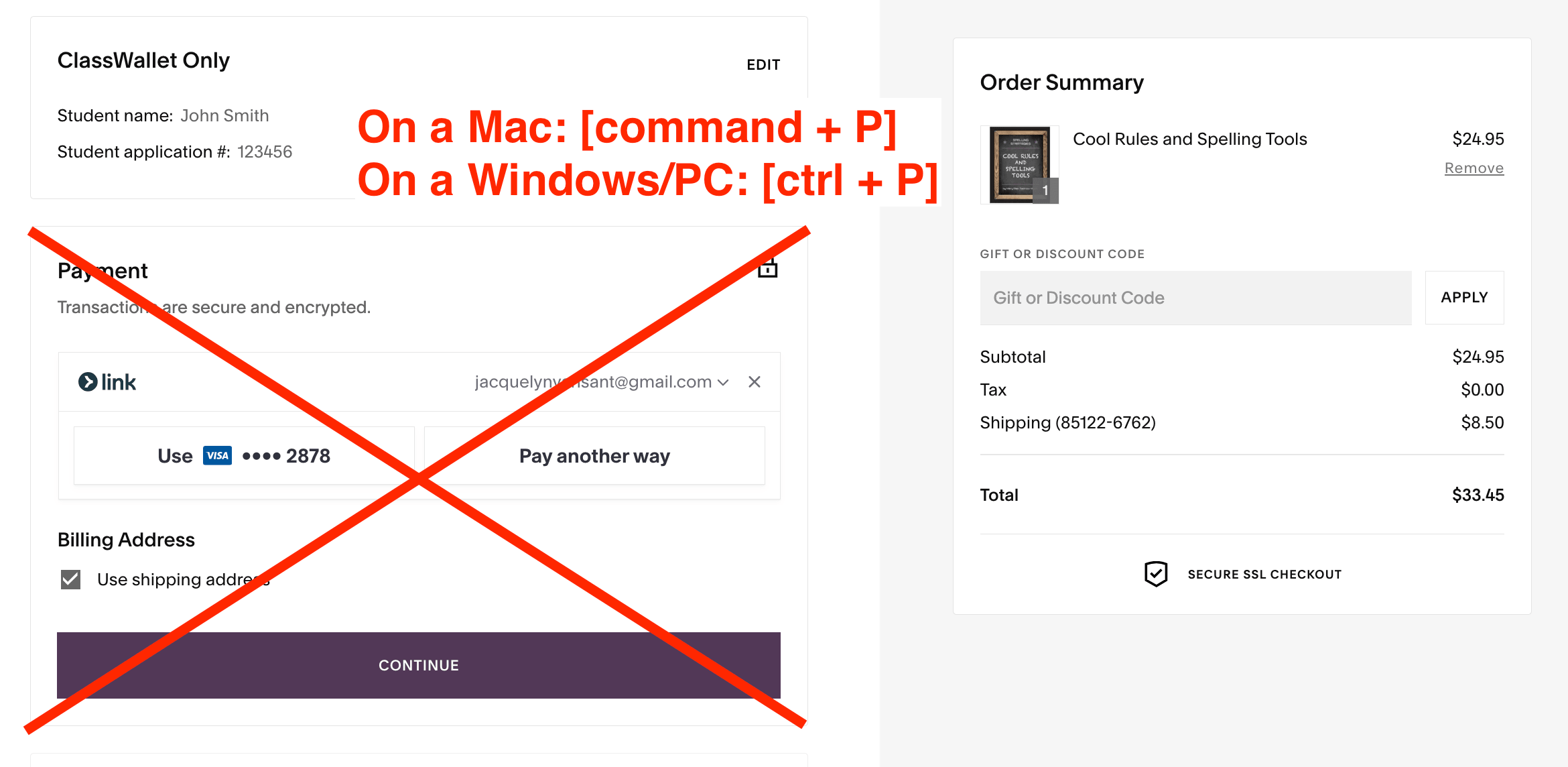
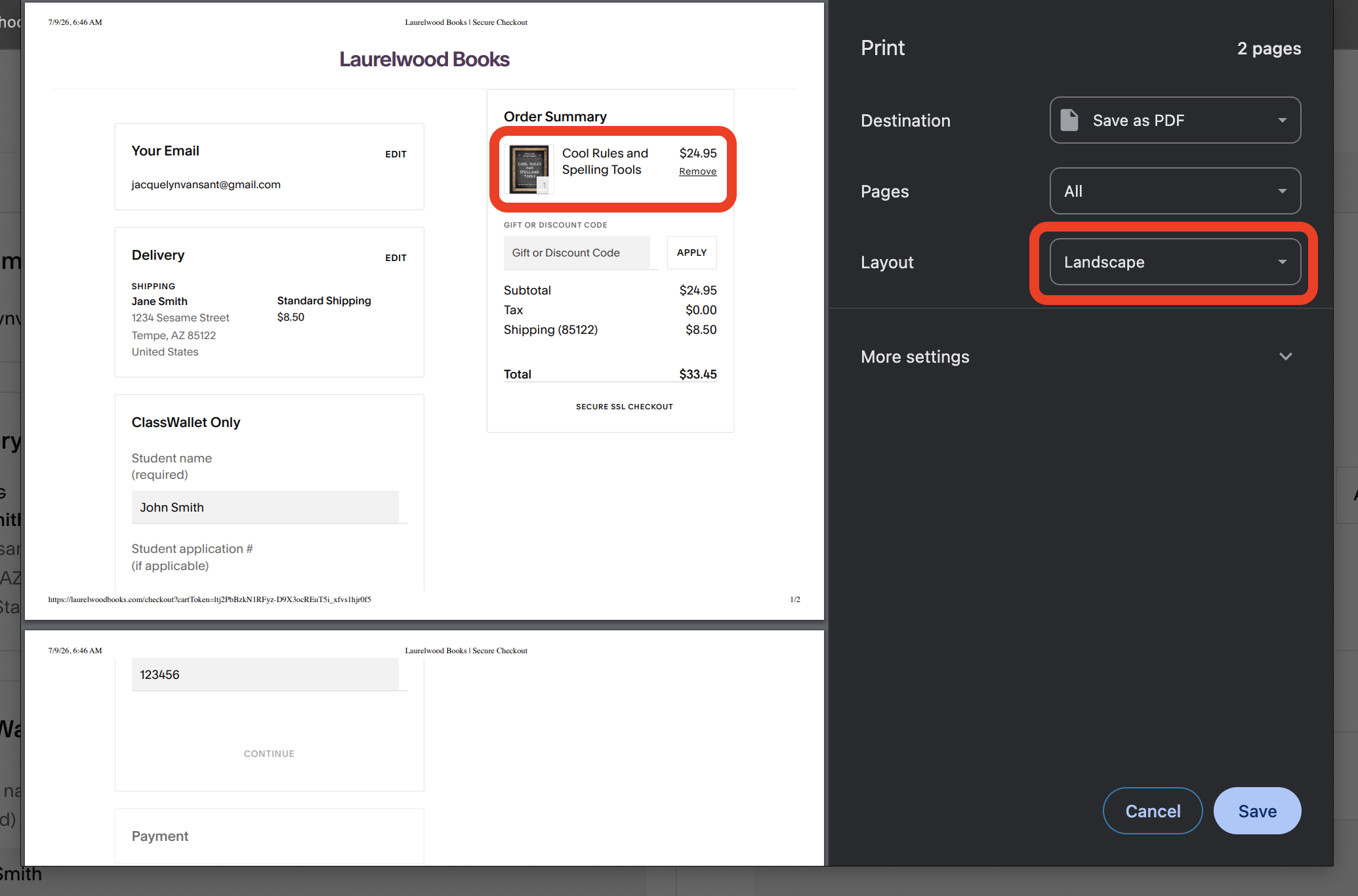
Step 8. In the print pop-up window, preview and make sure the full name of each product is visible. If it is not, change the Layout from portrait to landscape.
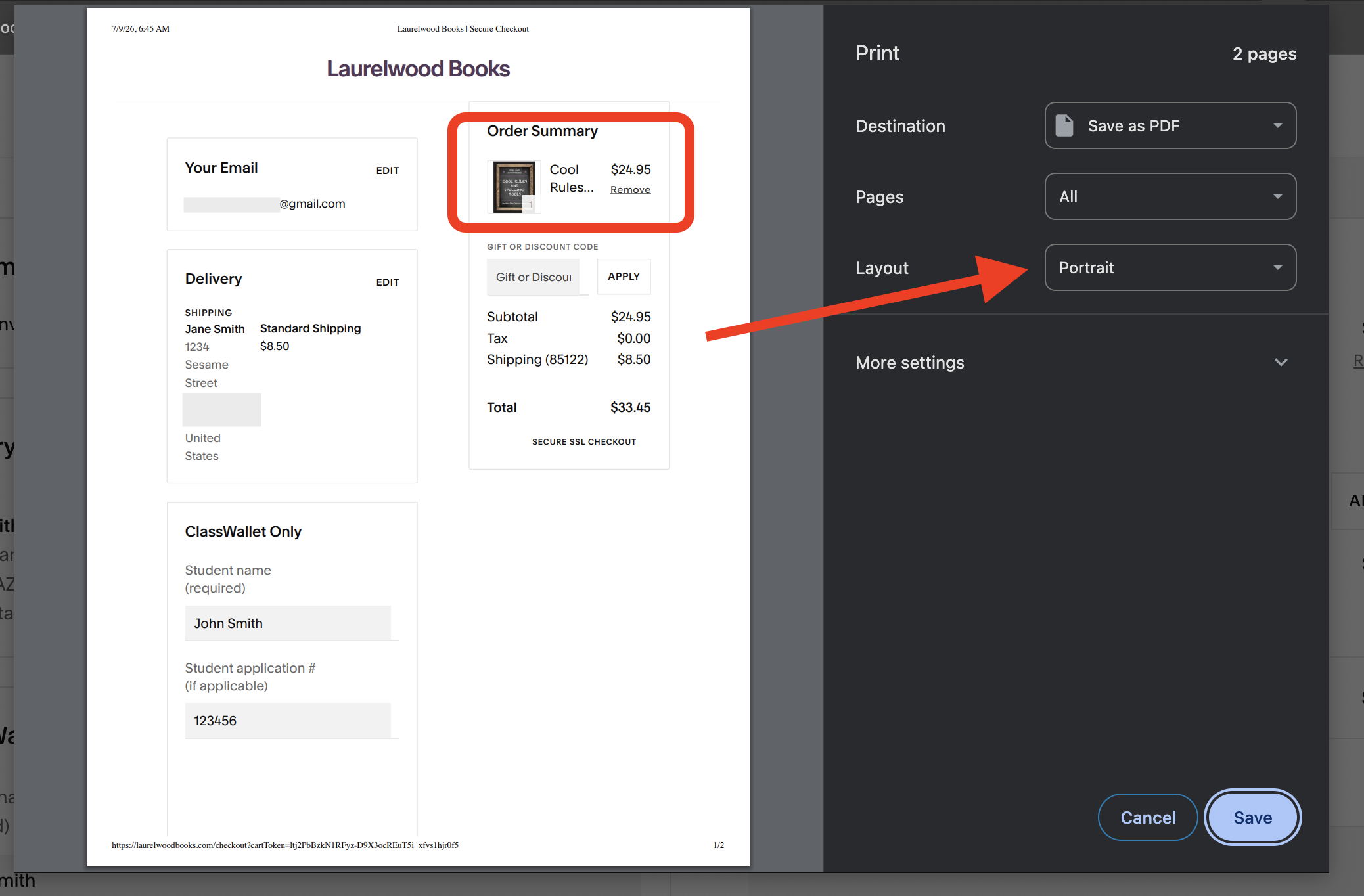
If you cannot read each item’s full name under Order Summary, LWB will not be able to read it either.
Change Layout to Landscape.
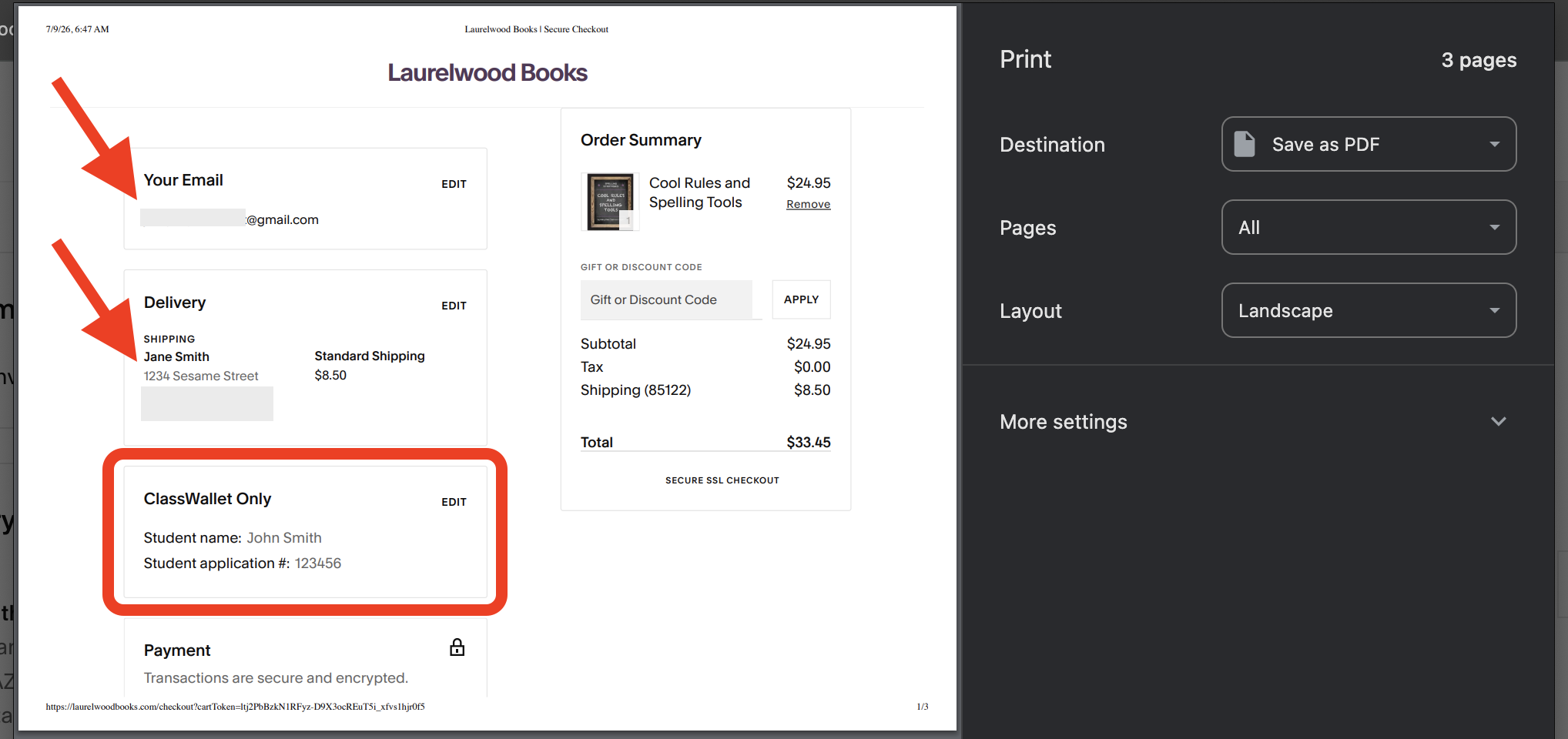
Verify your information
Make sure you use the same email and address that you used for your state’s program. Include your student’s name and application # (if required by your state).
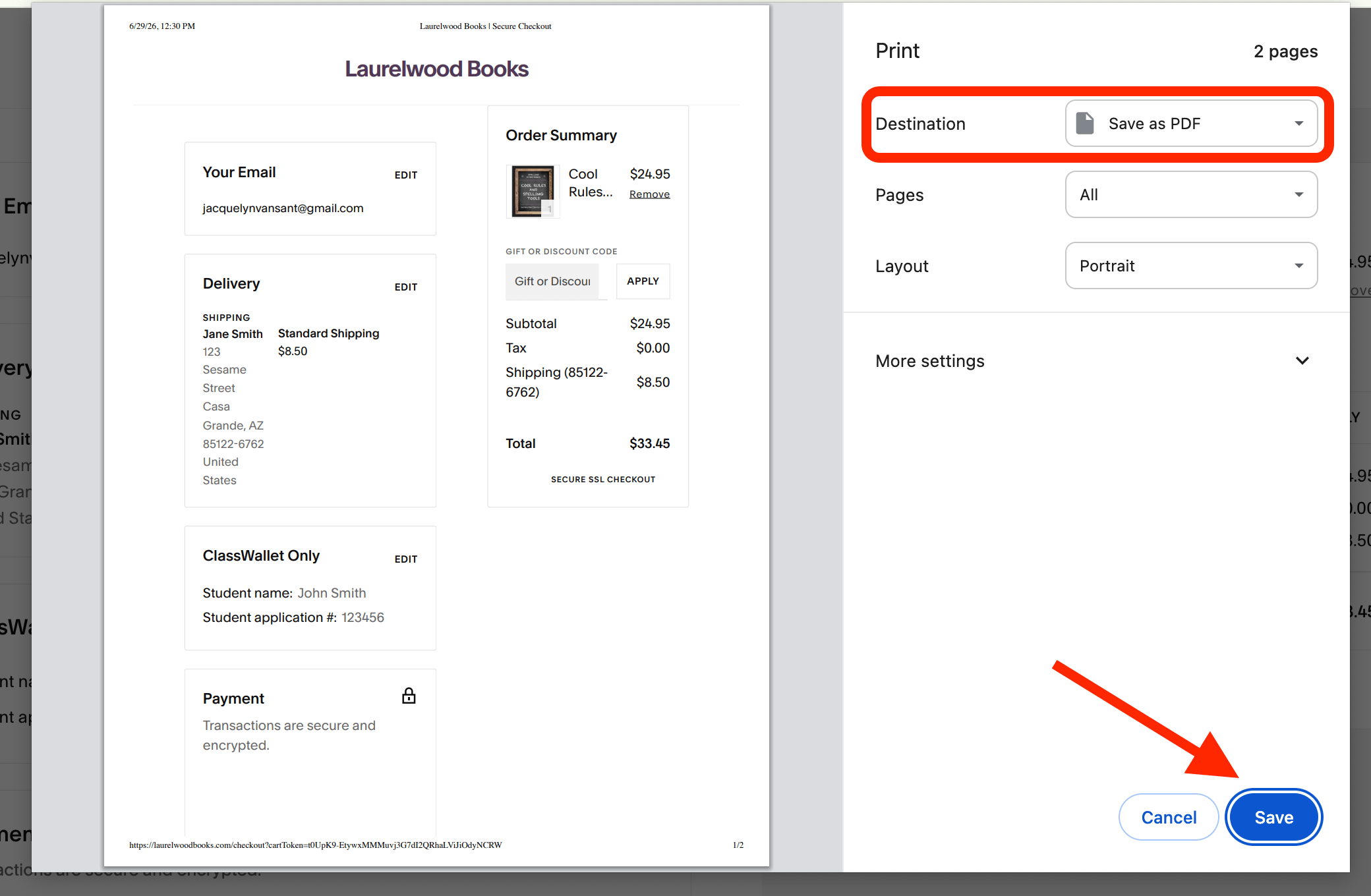
Step 9. Under Print, change the destination from your default printer to Save as PDF. Then click Save. It will trigger a new box to choose the destination folder on your computer. Then press Save again.
Note
Make sure you save the file to a folder you can easily find, such as My Documents, or an ESA-specific folder.
Step 10. Now log in to ClassWallet. If you have more than one student, make sure you're on the correct student profile.
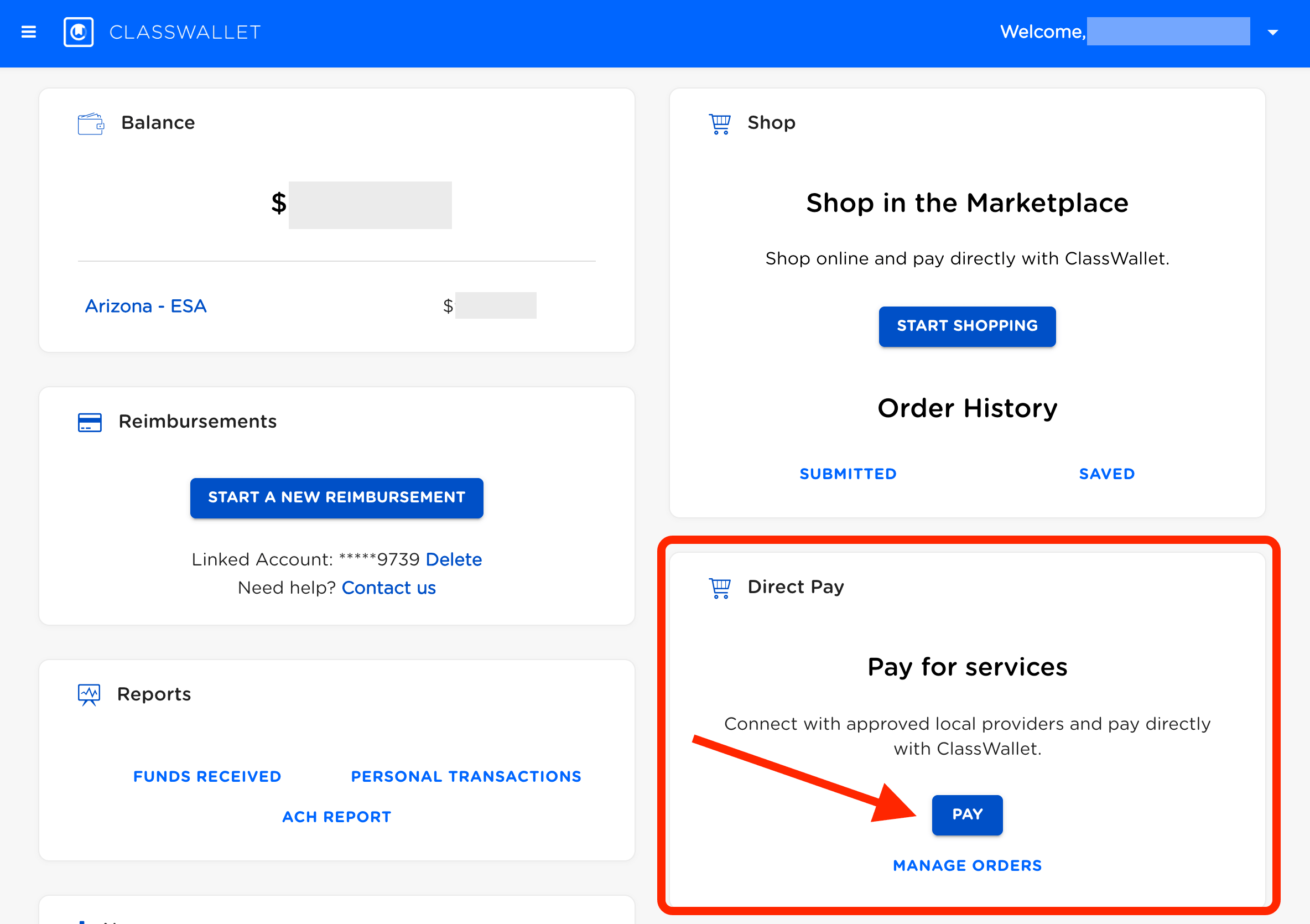
Step 11. Go to the Direct Pay tile and click the blue Pay button.
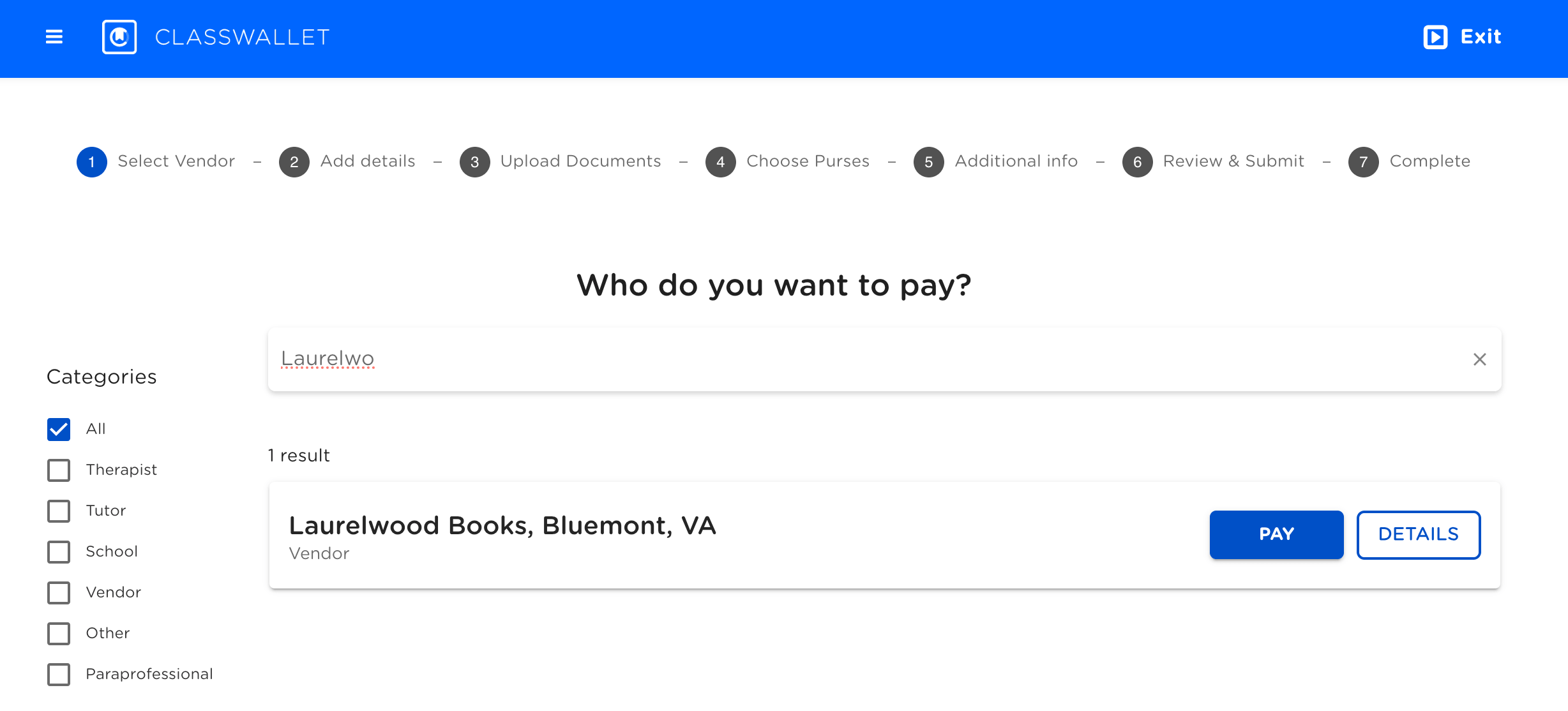
Step 12. Search for "Laurelwood Books." It will appear as: Laurelwood Books, Bluemont, VA. Click the blue Pay button.
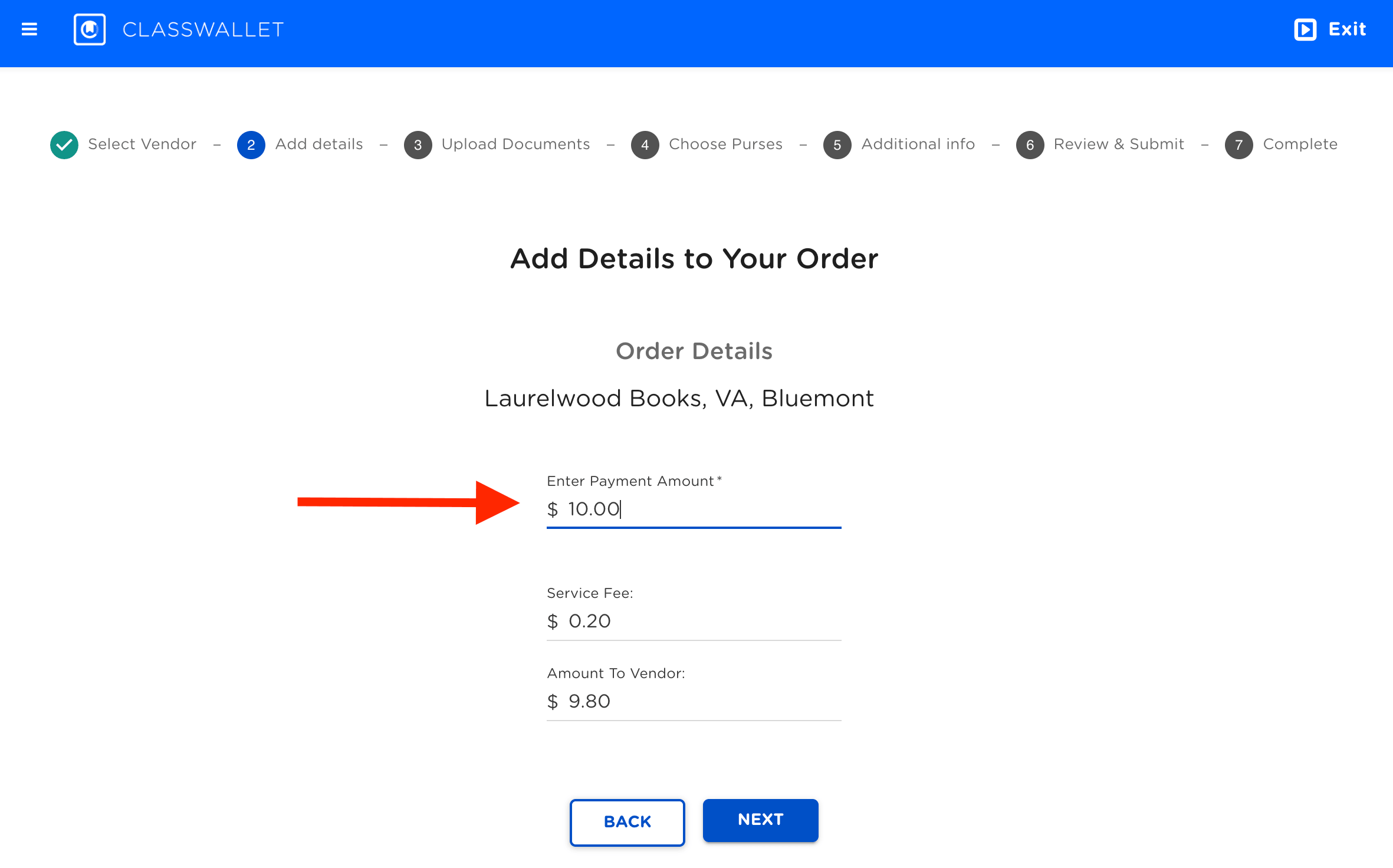
Step 13. Complete the Order Details by entering the total payment amount, then click Next.
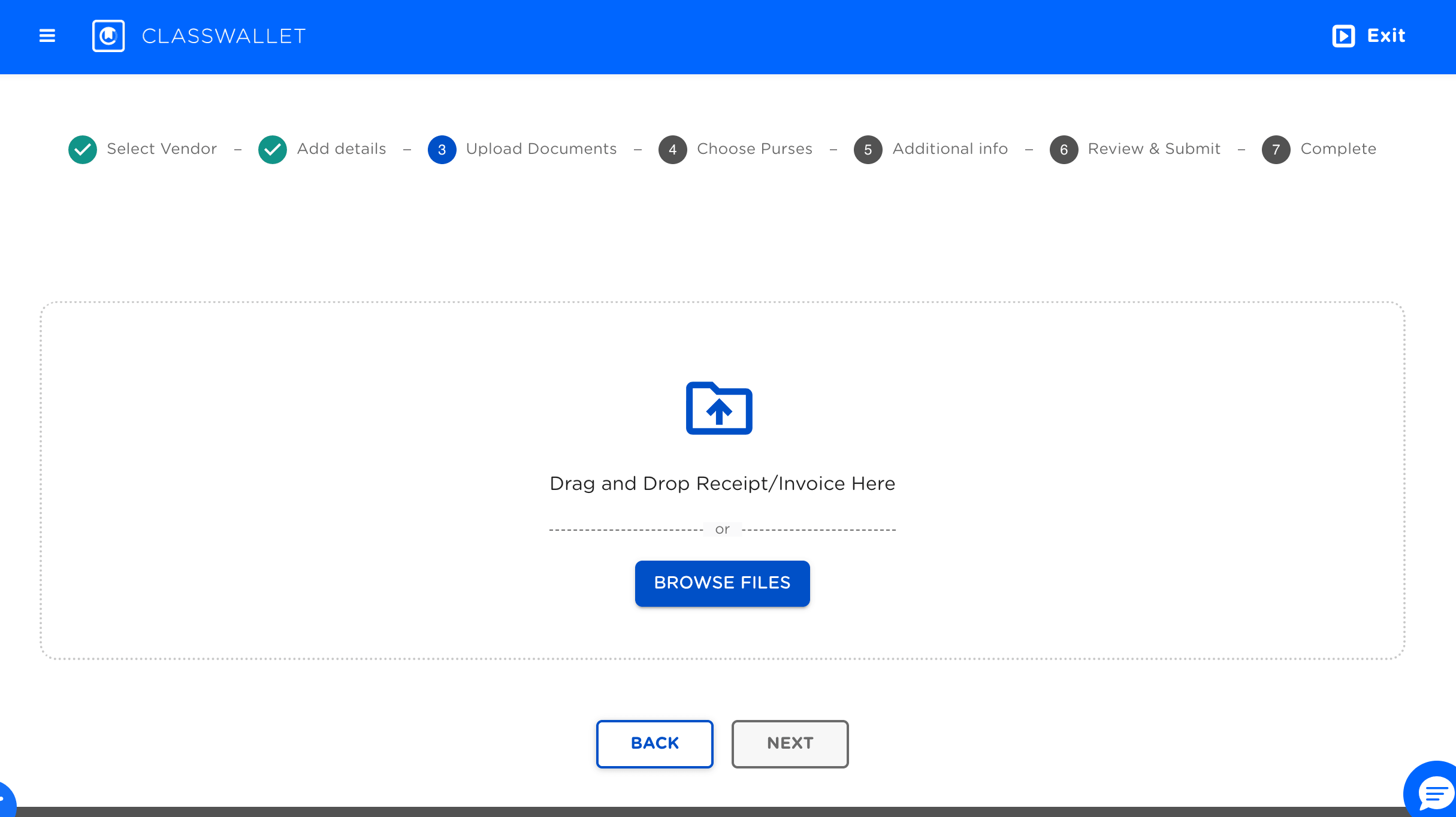
Step 14. Upload the PDF of your order and any additional documentation your state may require.
Step 15. Select the category the purchase(s) falls into (e.g. “curriculum” or “educational materials”). Note: more than one category can be selected.
Step 16. Review the details and Submit your request.
You're Done!
Once submitted, ClassWallet will process your request. Depending on your state’s program, this may require administrator approval before funds are released.
Need Help?
If you run into any issues during this process, please contact us.